Add New Tracking Device
- Add Your Phone as a Tracking Device
- Go to My Account > My Devices, click the
 icon at the top right corner and click 'New Device'
- Choose "Mobile Phone" as your device type
- Complete the form and click 'Save Device'
- To start/stop tracking, click "TRACK" button at top right corner.
- Notes
- For Boats & Vehicles, we recommend to use special tracking device, for reliable tracking
- Add Tracking Device for Boats & Vehicles
- Go to My Account > My Devices, click the icon at the top right corner and click 'New Device'
- Choose "FollowMe Tracking Device" as your device type
- Complete the form and click 'Save Device'
- When the device switched ON, it will start update location within 5-10 minutes.
Share Your Device with others
- Share with Public
- Go to My Account > My Devices, click the icon of the device to share.
- Click 'Edit Device'
- Tick the check box "Share withh Public" and Save
- Your tracking device will be listed under Public listing
- Notes
- User must have Device Settings permission
- Only Tracking devices are listed in public listing. Mobile phone devices can be located by searching by their name
- If device not listed, check the country selected under Public Settings
- Share with selected users
- Go to My Account > My Devices, click the icon of the device to share.
- Click 'Share'
- Click
 icon at top right corner
- Enter the registered email of the other user, select permissions and click Share
- Your tracking device will be listed under the new user's My Devices
- Notes
- User must have Sharing permission
- New users have to register with FollowMe before devices can be shared
Trip Logs
- To list trip details
- Go to My Account > My Devices, click the Device from the list (device location displays on map)
- Click the icon at top right corner and click 'Trip & Alarm Logs'
- Trip & Alarm logs for the current date is displayed by default. User Calender icon at bottom to change date
- Notes
- User must have History/Statistics permission to display Trip & Alarm logs
- Trip & Alarm logs available Only for FollowMe Tracking devices
Creating Groups
- To manage multiple devices, they can be grouped as needed
- Go to My Account > My Groups
- By default "My Acccount" is listed, which contains all your devices. (This group cannot edit or delete)
- Click the icon at top right corner and click 'New Group'
- Enter a group name and click save. You group will be created
- To add devices to this group, click the icon of the group and choose 'Add/Remove Devices'
- Click the icon at the top right corner, enter the device ID and click Save
- Notes
- Device ID can be found from the device list, under My Devices.
Change Device Photo/Image
- To change the default icon with preferred photo/image:
- Go to My Account > My Devices
- Click the device icon which needs to be changed
- Click the "CHANGE" button and choose an image from your gallery
- Click "SAVE" button to save the selected image
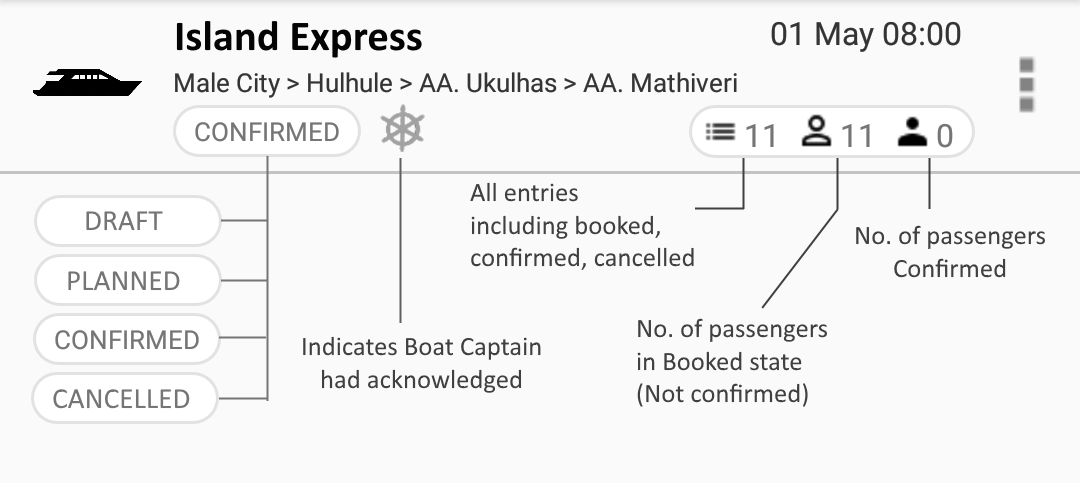
Trip Plan List
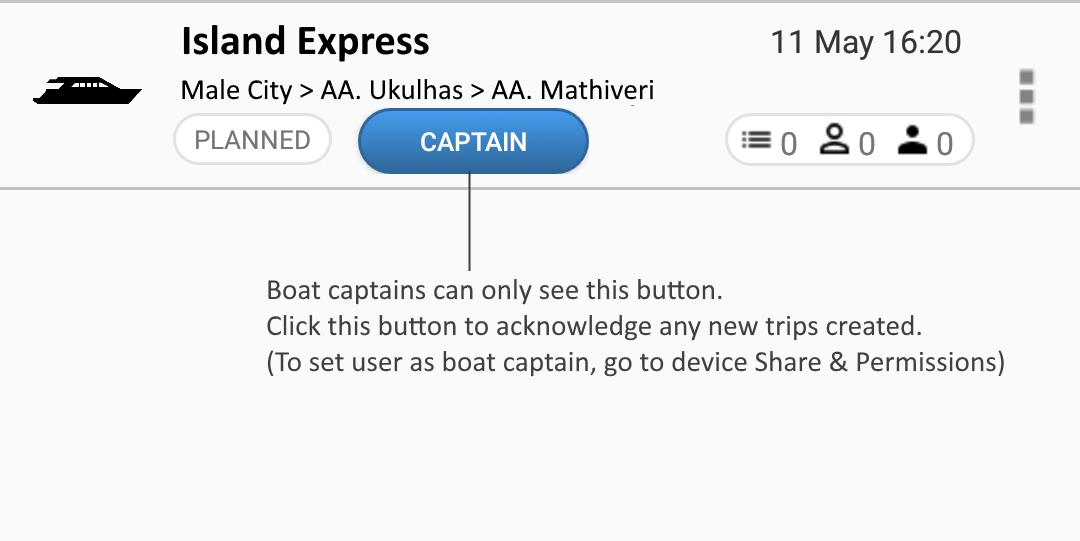
Boat Captain Permission
Boat Hire
- Preferred Boat Operators:
- Some customers have a selected boat operators from where they can only hire boats and their boat hire requests can be send to only these selected or preferred boat operators.
If you wish to hire boats from a specific operators, click the sliders to mark these boat operators first. When you request for a boat hire, pick the "My Preferred Operators Only" instead of "All Boat Operators" under Bid Open drop list
Contact Us
- For more information, we can be reached by
- Telephone: 7901617
- Viber & WhatsApp: +960 7901617
- Email: [email protected]
- Website: followme.mv